

TV Screen Blurry? First Work Out Which Kind of Blur You Have
"Blurry" is really four different problems, and if you classify it wrongly, every step that follows is aimed in the wrong direction. So the first thing to do is not to open a settings menu — it is to spend thirty seconds working out which one you have.
| What you are seeing | Which problem it is | Go to |
|---|---|---|
| Even still frames lack detail | Insufficient resolution (source) | Sections 2 and 3 |
| Sharp when still, smeared when moving | Motion blur | Section 4 |
| Haloed edges, or detail looks scrubbed away | Picture processing set too high | Section 5 |
| Equally bad on every source and every app | Possibly hardware | Run the test in section 1 |
Step one: use the built-in Picture Test to rule out hardware
Almost every guide skips this, and it is the fastest step available.
Path: Settings → All Settings → Support → Device Care → Self Diagnosis → Picture Test
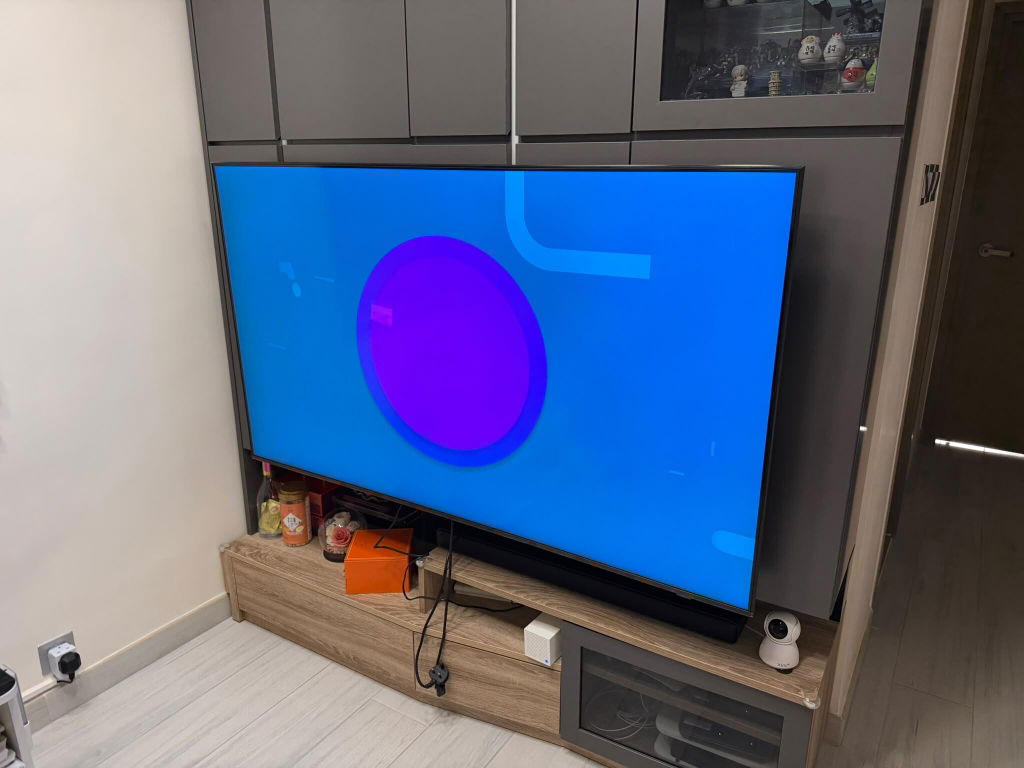
The TV displays a test image stored inside the set, bypassing every external source, every app and every cable.
- The test image is sharp → the panel and image processing are fine. The problem is a source, a cable or a setting. Keep reading
- The test image is also blurry → this points at hardware. Stop working through settings and go to the last section
The same Self Diagnosis menu also holds Video Test, HDMI Signal (which shows what format the incoming signal actually is) and Broadcast Signal (aerial reception strength) — all of which narrow things down further.
Step two: ⚠ the biggest single cause in Hong Kong — local broadcast is not 4K
If your "blurry" picture is mostly on local TV channels, this section is the answer.
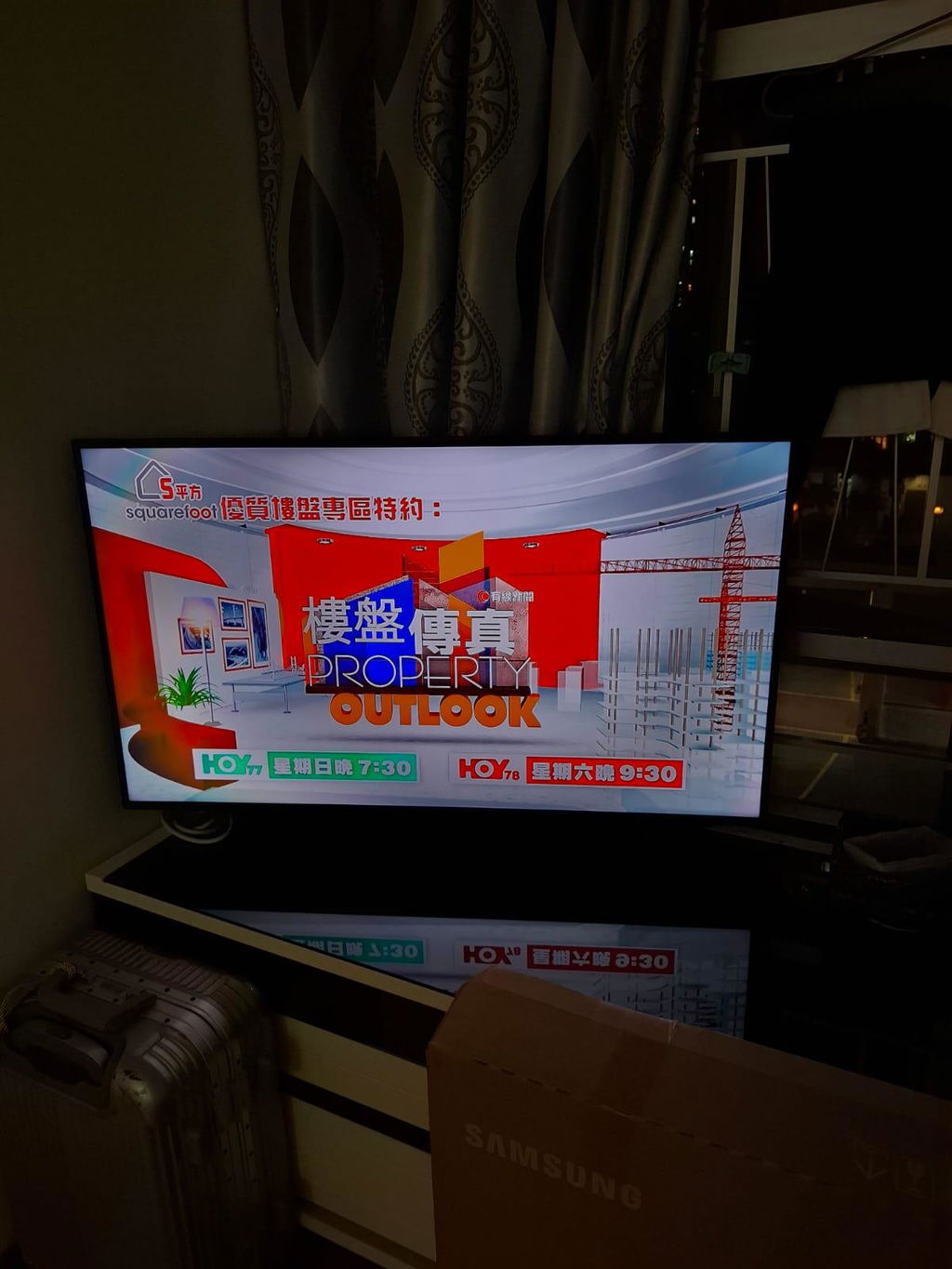
Hong Kong digital terrestrial television is HD/1080i, not 4K. (Hong Kong has been fully digital since 1 December 2020, covering at least 99% of the population, with 16 DTT programme channels currently on air.)
So whenever your 4K TV is showing a local channel, it is upscaling — stretching a 1080i image across a 4K panel. The bigger the screen, the more obvious it is. This is not a fault; it is a limit of the source, and no setting can invent detail that was never broadcast.
A few things do genuinely help:
- Keep Sharpness low — on upscaled content, high Sharpness magnifies compression noise along with the picture, so the more you add the messier it looks (see section 5)
- Noise reduction can be set to low — helpful on local channels, but switch it off for 4K streaming
- The upscaling processor is a specification, not a setting — this is decided when you buy. Mini LED and OLED sets generally upscale better than entry-level models
Viewing distance matters too. Hong Kong living rooms are shallow — roughly 1.7–2.3 m from a 55-inch, 2.0–2.7 m from a 65-inch, 2.3–3.1 m from a 75-inch. The closer you sit, the more the shortcomings of upscaled HD show. In a large overseas living room you might sit far enough away not to notice; at Hong Kong distances you see it straight away. For a full size-and-distance breakdown, see our 55-inch and 65-inch ranges.
Step three: source resolution — set on the source, not on the TV
⚠ First, a widespread misconception to clear up: a TV has no resolution setting.
A TV is a display; its panel resolution is fixed hardware. There is no option that "sets the TV to 4K" — you will not find it, because it does not exist. Samsung's complete list of picture settings (Brightness, Contrast, Sharpness, Picture Clarity Settings, Local Dimming, Gamma, Shadow Detail and so on) contains no resolution item whatsoever.
Resolution is set in three places instead:
In the streaming app
Open the app's own playback settings and set quality to the highest available. But there is something more important than that setting —
⚠ Netflix caps resolution by subscription plan. Officially: the "Standard with ads" and "Standard" plans top out at 1080p, and only the "Premium" plan includes 4K + HDR.
So a customer who buys a 65-inch 4K set and watches Netflix on a Standard plan will inevitably find it short of detail on a screen that size — and no TV setting can change it, because the 4K option never appears in the first place. This is one of the most frequently misdiagnosed "the TV is faulty" situations there is.
Bandwidth, per the official figures:
- Netflix — HD (720p) 3 Mbps, Full HD (1080p) 5 Mbps, 4K/UHD 15 Mbps
- YouTube — 4K 20 Mbps, 1080p 5 Mbps, 720p 2.5 Mbps, 480p 1.1 Mbps
Note that they differ: on the same connection, YouTube 4K asks for more than Netflix 4K. And these are single-stream figures — if someone else at home is gaming or on a video call, you need headroom above them.
On the console, Blu-ray player or set-top box
Open that device's own video settings and set the output resolution to 4K if your TV supports it. PS5, Xbox and Apple TV all offer both automatic and manually specified modes.
⚠ What you actually need to enable on the TV: Input Signal Plus
This is the setting most guides are reaching for when they say "adjust the TV's resolution".
Path: Home → Settings → General → External Device Manager → Input Signal Plus (called HDMI UHD Color on some models)
Samsung describes it as improving picture quality for colours next to each other on screen. What it does in practice is open that HDMI port to full bandwidth — left off, a 4K source is downgraded, which is exactly how a picture ends up "technically 4K but not looking like it". It has to be enabled for each HDMI port separately.
If your main input is a console, our gaming TV range lists which sets support 4K120, VRR and ALLM.
Step four: blurry only during movement — that is motion blur, a different problem
The test is simple: sharp when the image is still, smeared as soon as something moves fast — that is motion blur, and it has nothing to do with resolution.
On a Samsung the relevant control is Picture Clarity Settings (inside Picture → Expert Settings), which Samsung describes as optimising video clarity in dynamic scenes.
But it is not free, and the costs deserve stating plainly:
- Motion interpolation — genuinely reduces smearing, but produces the soap opera effect (films start looking like daytime television) and interpolation artefacts, and it adds input lag
- LED Clear Motion / Clear Motion — Samsung explicitly warns that enabling it makes the screen appear darker. A poor trade in a bright room
So the correct approach is to vary it by content, rather than switching it all on or all off:
- Films and drama — off. Filmmaker Mode disables it automatically. Our separate TV picture calibration guide covers the details
- Football and live sport — moderate is fine. Fast horizontal pans genuinely benefit; Sports mode handles it
- Gaming — leave it off. Motion interpolation adds input lag. The right approach is Game Mode plus VRR (variable refresh rate) to cut tearing. Our gaming TV range lists which sets support it
If you still see smearing in sport or games with interpolation off, the panel's refresh rate itself is the limit — that is hardware, not a setting. For what 60Hz, 120Hz and 144Hz actually mean in practice, see how refresh rate affects picture quality.
⚠ While we are here, another common claim to correct: a TV has no manual refresh-rate selector. Panel refresh rate is fixed hardware, and the actual input rate is negotiated automatically between TV and source — there is no menu item that "sets it to 120Hz". (Computer monitors and source devices have that setting; TVs do not.)
Step five: picture processing set too high — the easiest thing to mistake for blur
This category is the counter-intuitive one: the settings you turned up in order to make the picture "clearer" are often the reason it looks worse.
Sharpness — set it to 0
Samsung describes Sharpness as adjusting the clarity of object outlines, with higher values making outlines sharper.
But it does not add detail — it adds an artificial white halo along object edges. 4K content already carries all the detail there is, and upscaled HD is worse still, because sharpening magnifies compression noise along with the picture. Set it to 0 (Samsung's range is 0–20; on brands using 0–100, 50 is usually the neutral midpoint — the factory default tells you where neutral is).
Hong Kong living rooms put you close to the screen, where those artificial edges are most obvious — so zeroing this matters more here than overseas.
Digital Clean View (noise reduction) — vary it by content
Samsung describes it as reducing visual noise and distractions such as flickering, for a cleaner picture.
But set too high it scrubs detail away along with the noise, leaving a smooth picture with no texture. Low is reasonable for local channels and older material; switch it off for 4K streaming.
⚠ Picture Size — a one-press fix that almost nobody checks
Samsung's Picture Size Settings offer 16:9, Custom, 4:3, Fit to Screen, and Zoom and Position.
If it has been set to Zoom, or to anything other than Fit to Screen, the TV crops the image and scales it back up — which is real, literal blur, because the signal is no longer mapped one-to-one onto the panel's pixels. Set it back to Fit to Screen or 16:9 and the picture sharpens immediately.
Picture mode
Dynamic and Vivid modes push Sharpness and contrast to extremes for showroom impact, which makes the picture look coarse rather than clear. Use Filmmaker Mode or Movie for films, and Standard for everyday bright-room viewing. Full method in our picture calibration guide.
Step six: HDMI cables — what you need is the specification, not the price
Plenty of guides say "use an HDMI 2.0 or HDMI 2.1 cable". There is no such official cable name. The HDMI Licensing Administrator itself notes that resellers use a variety of marketing terms and may not use the official designations.
The official categories and certified bandwidths:
| Official cable name | Certified bandwidth | What it supports |
|---|---|---|
| Standard HDMI Cable | — | 1080i / 720p |
| High Speed HDMI Cable | 10.2 Gbps | 1080p, 4K@30 |
| Premium High Speed HDMI Cable | 18 Gbps | 4K60 + HDR (enough for ordinary 4K) |
| Ultra High Speed HDMI Cable | 48 Gbps | 4K120, 8K60 (required for gaming) |
| Ultra96 HDMI Cable | 96 Gbps | 8K@60 4:4:4, 4K@240 |
So choose on this basis: ordinary 4K video → Premium High Speed; a PS5 or Xbox where you want 4K120 → Ultra High Speed. Officially certified cables carry a certification label with a scannable QR code. A cheap compliant cable beats an expensive non-compliant one.
Trying a different port is worthwhile too: HDMI ports on the same TV do not always have the same bandwidth — on some sets only certain ports support 4K120. If a console will not run 4K120, try another port, and remember to enable Input Signal Plus on it.
Step seven: cleaning the screen — doing it wrong strips the coating
Dust and fingerprints genuinely do make bright scenes look hazy. But cleaning it the wrong way costs far more than the haze. Samsung's official guidance:
- Unplug the TV first
- Use a soft, clean, lint-free, dry cloth — microfibre recommended
- If you use water, spray it onto the cloth, never onto the screen. Liquid running into the bezel damages the set
- Do not press hard — Samsung's own wording: screens are fragile and can be damaged if you press too hard
- Never use: window cleaner, soap, scouring powder, anything containing alcohol, benzene, ammonia or paint thinner, and no abrasive pads or paper towels
⚠ "Never spray the screen" and "no paper towels" are the two most commonly omitted instructions — and in practice the two most common ways people ruin a panel. The wrong cleaner will scratch the screen or strip off the anti-glare coating, causing permanent damage, and matte or anti-glare coated models are especially vulnerable: once that coating is marked, it cannot be restored.
Step eight: update the firmware
Settings → Support → Software Update → Update Now. Image-processing and HDMI compatibility issues genuinely do get fixed in firmware. Recent sets update themselves by default, but it is worth checking manually.
Step nine: factory reset — last, not early
Many guides put this at step 7. It does not belong there.
A reset wipes every picture and sound setting, your Wi-Fi and all app logins — but it cannot fix a source set to a low resolution, a Netflix plan without 4K, Picture Size left on Zoom, Input Signal Plus switched off, local broadcast being HD, or a genuine hardware fault. In other words, it cannot fix any of the real causes above.
It is only worth doing when two things are true at once: the built-in Picture Test is sharp (so the panel is fine), and everything above has been tried without success. Note down your own settings first.
If it is the panel or the processor: how our warranty works
If the built-in Picture Test is itself blurry, or shows blocks, lines or dead pixels, the fault is hardware and there is no point working through more settings.
⚠ This is widely misunderstood: we sell international-version TVs, and the warranty is provided directly by Elechid rather than by the manufacturer. Calling Samsung Hong Kong or LG Hong Kong will not get you help — contact us instead.
Our policy, in its own words: three years of door-to-door free checking and repairing; replacement parts are charged additionally.
- On-site inspection and fault diagnosis — covered for 3 years
- Repair labour — covered for 3 years
- Replacement parts — quoted first, carried out only after you approve
For comparison, Hong Kong local-version TVs typically carry a 1-year warranty and usually require you to arrange transport for servicing yourself. Full terms are in our TV warranty policy and FAQ.
The fastest way to report a fault: WhatsApp us with the model number, the result of the built-in Picture Test, and whether every source is affected or only some — that lets us narrow the cause before a technician sets out. Our Kwun Tong showroom also has sets across every tier, so if you want to see the same content side by side on different models, coming in is the quickest way.
Quick reference
| Symptom | Most likely cause | Do this first |
|---|---|---|
| Built-in Picture Test is also blurry | Hardware | Contact us — 3 years on-site |
| Only local channels look soft | Local broadcast is HD, not 4K | Sharpness to 0, noise reduction low |
| Only Netflix looks soft | Plan capped at 1080p | Check the plan — only Premium has 4K |
| Console or set-top box looks soft | Input Signal Plus not enabled | Enable it on that HDMI port |
| Sharp when still, smeared when moving | Motion blur | Sports mode for sport; Game Mode + VRR for gaming |
| Haloed edges, coarse-looking image | Sharpness too high | Set Sharpness to 0 |
| Image looks cropped and stretched | Picture Size set to Zoom | Change to Fit to Screen or 16:9 |
| PS5 will not run 4K120 | Cable specification or port | Use an Ultra High Speed cable, try another port |
Working through that table gives you an answer for the large majority of "blurry screen" cases within ten minutes — and for many of them the answer is "the TV is fine, the content source is the limit", which is worth knowing in itself rather than replacing a perfectly good set.
If you have questions about choosing or setting up a TV, WhatsApp us with your model and what you mostly watch. For the relationship between resolution and picture quality from the ground up, see our complete guide to 4K resolution; to browse sets, start with Samsung TVs, QLED, Mini LED and OLED.




Thank you it was helpful ☺️